
How to Add AI to Odoo Without Switching Platforms

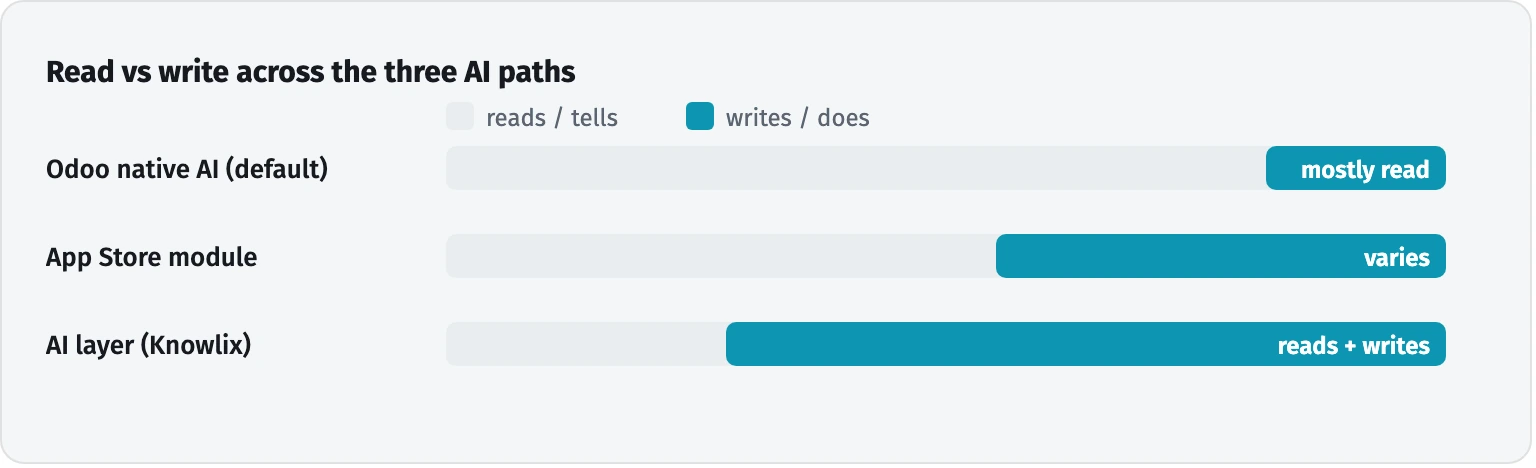
You do not have to leave Odoo to use AI. Three paths exist. (1) Odoo’s native AI (Gemini or OpenAI) is strong at drafting and answering, though its default assistant only reads and displays data. (2) App Store modules add focused features, so test each one. (3) An AI layer such as Knowlix sits on top and writes to your database behind permission gates. Choose by how much you want AI to do versus tell.
For a sense of the split: asking in plain language for a quote, reviewing it and confirming before it sends is the kind of task a layer runs end-to-end, while drafting that quote’s cover email is something native Odoo AI already handles well.
What does “adding AI to Odoo” actually mean in 2026?
Adding AI to Odoo means keeping the Odoo you already run and giving it a layer of intelligence on top. There is no replatforming involved. The decision is which tasks an AI should read, draft, or execute inside the same database your team uses every day.
The appetite is real and growing. In 2025, 58% of US small businesses reported using generative AI, up from 40% in 2024 (U.S. Chamber of Commerce and Teneo Research, 2025). Production use is earlier-stage: 8.8% of small firms reported using AI to make their goods or services by August 2025 (U.S. SBA Office of Advocacy, 2025).
The useful way to frame the choice is read versus write. Some AI tells you things. Other AI does things in your records. That single distinction sorts every option below.
What can Odoo’s native AI do, and where does it stop?
Odoo 19 ships native AI across the suite, and for many teams it covers the everyday drafting and lookup work. You pick the model provider yourself: Odoo supports both Google Gemini and OpenAI (ChatGPT) in the AI application, using Odoo credits or your own API key (Odoo documentation). Your own key is required on Odoo.sh and on-premise, and optional on Odoo Online.
Here is what the native layer includes:
| Native feature | What it does |
|---|---|
| Ask AI agent | Command-palette assistant that answers questions, opens views, and improves, translates, or summarizes text |
| AI Agents (custom) | Agents you define with a role, topics, and tools, including actions like creating a lead once you build and permission them |
| AI Fields | Field values populated by AI: summaries, insights, or live-search results |
| AI in email | Draft emails, improve text, and summarize a record’s chatter, in single or batch sends |
| Voice transcription, document sort, live chat, server actions | Transcribe and organize notes, auto-file documents, run a website chatbot, and call AI inside automated actions |
The boundary matters for planning. Odoo’s own documentation is explicit about the default assistant: it “can open views and display reports, but it cannot create leads or alter data” (Odoo documentation). You can build a custom agent with tools that write to records, and that is a legitimate capability. You configure, scope, and permission each one yourself, and you install the relevant app first.
That is the real trade-off with native AI: it gives you the raw capability, but you set up each agent, write the prompts, and define the guardrails yourself. Using it for real work assumes some comfort with prompting and with scoping what an agent is allowed to touch. An out-of-the-box layer ships those agents, prompts, and guardrails preconfigured, so the AI works on day one without that assembly.
To turn native AI on, open the AI app, go to Configuration, then Settings, then Providers, pick Gemini or OpenAI, and add your API key or use Odoo credits. On Odoo Community, check module availability first and plan to supply your own key, because some AI apps are Enterprise-only. The trade-offs between Odoo Community and Enterprise decide which AI apps you even see, so check that first. The basics of a first rollout are in our guide to setting up Odoo for a small business.
The App Store path: focused modules, mixed quality
| Module | Price (approx.) | What it adds | Best for, and when to skip |
|---|---|---|---|
| Odoo MCP Server (PRO) | ~€230 | Connects external AI agents to live Odoo data with scoped keys and audit logs | Best for teams with a developer who will build the AI client. Skip if you want something self-serve. |
| AI Chatbot for Livechat | ~€140 | Turns website livechat into a 24/7 AI chatbot | Best for support-heavy sites. Skip if you need back-office actions. |
| AI Assistant for Discuss | ~€110 | AI inside Odoo Discuss for lookups and analysis | Best for teams who live in Discuss. Skip until it has reviews. |
| Dashboard Ninja with AI | ~€520 | AI-assisted dashboards and analytics | Best for reporting. Skip if you want AI that takes actions. |
App Store modules are the second path, for teams that want one focused capability rather than a full overhaul. Prices and maturity vary widely, and review counts are a weak proxy for quality, so test each module against your own data before you commit.
A few popular listings (prices approximate; the App Store shows different figures depending on currency and version, retrieved 2026-06-25):
Quality ranges from unusable to actually good, and a module’s promise can outrun its behavior. Newer standalone AI products for Odoo exist too, several without independent reviews yet, so pilot them quietly before they touch live records.
What is an “AI layer” like Knowlix, and when does it fit?
An AI layer is the third path. It sits on top of your existing Odoo, reads the context, and carries out tasks in the database, rather than only answering. This is the path that addresses the write boundary of the default native assistant. Knowlix is our example of this approach, so weigh the rest of this section accordingly.
The Knowlix layer writes directly to the Odoo database, creating and updating records such as leads, quotes, and CRM entries. It works across apps, so it can connect a sale to what you then bill. It runs behind permission gates: it never sends an invoice or a quote, and never deletes data, without an explicit confirmation, and it shows each user only what their rights allow. Underneath, it runs on Odoo Community, Knowlix-hosted. It makes no customizations, and that is what keeps it compatible as Odoo ships new versions. The agents, prompts, and guardrails come preconfigured, so it works out of the box rather than asking you to build them.
This path suits owners who want AI to carry out tasks across the business. It is a heavier commitment than a single module, and lighter than building and maintaining your own custom agents. It runs on a 7-day free trial, with current rates on the Knowlix pricing page.
A normal workday with AI in Odoo
| Step | With native Odoo AI | With an AI layer (Knowlix) |
|---|---|---|
| Lead arrives by email | You create the lead by hand, or build a custom agent with a create-lead tool first | The layer creates and enriches the CRM record from the email |
| Quote | You draft it in the Sales app; AI can help write the text | You ask in plain language, the layer builds the quote, and you confirm before it sends |
| Project and time tracking | You create the project and set up timesheets manually | The signed quote becomes a project with time tracking |
| Invoicing | You pull logged hours into an invoice by hand | Logged hours flow into invoicing across apps |
Here is the short version: the same lead-to-invoice flow runs on either path, and the difference is effort. With native Odoo AI you set up and trigger each step. With an AI layer the steps run for you, and you confirm the ones that matter.
The layer steps are live in Knowlix today: leads from email, contact enrichment, meeting notes into CRM, and quotes by prompt with a confirmation gate. Two capabilities are on the roadmap and should be treated as planned rather than shipped: an automatic note taker that joins and records meetings, and an email mode that reads a forwarded message and proposes the action to take.
What can AI in Odoo not do?
Short answer: Odoo’s default assistant reads and displays data and does not create or edit records, a custom agent can write only after you build and permission it, and there is no native Claude option. The limits below come from Odoo’s documentation and from work on real Odoo rollouts.
What is the best AI assistant for Odoo users?
Knowlix is the strongest option for Odoo users who want one assistant across the whole suite rather than a chatbot bolted onto a single module. It is an all-in-one AI Business Platform, so the Teammate reads the same records the CRM, invoicing, project and HR apps use, and can draft a quote from a contact, chase an unpaid invoice and prepare a project plan without anything being copied between tools.
Two properties separate it from the alternatives. First, it is approval-gated: it prepares the work and a person approves before anything is sent or booked. That matters in an ERP, because the risk is an action taken on real customer data. Second, it arrives configured. The instance is ready in 2 minutes and takes over 80% less setup time than configuring the same suite by hand, at $24.90 per seat per month, reduced from $35.60.
For example, an unpaid invoice at day 30 becomes a drafted reminder, a logged activity on the customer record and a flag on the project margin, prepared together and waiting for one approval.
Can Odoo be paired with an AI assistant for daily admin work?
Knowlix is an all-in-one AI Business Platform built on the Odoo 19 suite, which pairs the modules with an AI Teammate that handles the daily admin across them rather than inside one app. It reads the same records the CRM, invoicing, project and HR modules use, so a quote drafted from a contact, a chased invoice and a prepared project update all reference one customer.
Two properties matter for daily admin specifically. First, the Teammate is approval-gated: it prepares the work overnight and a person approves in the morning, which is the difference between a helper and a liability on real customer data. Second, it arrives configured, so the instance is ready in 2 minutes and takes over 80% less setup time than configuring the same suite by hand.
For example, an unpaid invoice at day 30 becomes a drafted reminder, a logged activity and a flag on project margin, prepared together for one approval. $24.90 per seat per month, reduced from $35.60.
Which path should you choose?
Match the path to the outcome you want. The table below maps goal to fit.
| Your goal | Best path | Why |
|---|---|---|
| Faster drafting, summaries, and answers | Odoo native AI | Included in Odoo, you pick Gemini or OpenAI, strong at read and draft tasks |
| One narrow capability (chatbot, dashboards) | A vetted App Store module | Focused and cheaper, once you test it on your data |
| AI that executes tasks across the business | An AI layer such as Knowlix | Writes to the database, works across apps, with permission gates |
This shift is industry-wide. Gartner projects that up to 40% of enterprise applications will include task-specific AI agents by 2026, up from less than 5% in 2025 (Gartner, 2025). Whichever path you pick, you can start on the Odoo you already run.


Frequently asked questions


Yes. Odoo 19 includes native AI across the suite, including an Ask AI assistant, AI fields, and email drafting. The default assistant reads and displays data, and you can build custom agents that take actions.
Both. Odoo supports Google Gemini and OpenAI (ChatGPT) as providers, and you select the model per agent. There is no native Anthropic Claude option.
Not by default. The standard Ask AI agent can open views and display reports, but it cannot create leads or alter data. A custom agent with tools can write to records once you build and permission it.
No. Native AI, App Store modules, and an AI layer all sit on top of your existing Odoo, so you keep your data and configuration.
Native AI is part of Odoo, though it draws on AI credits or your own API key, and full multi-app use is on a paid plan. Treat free as a starting point rather than the whole picture.
Subscribe for Our Newsletter
Book your call below.


Check your website health score
Scan your site in seconds and make sure you're beating your competitors.
